Options |
Home | ||
| One type of drawing
will always need to be analysed differently to another type of drawing. The number of
decimal places preferred, the units used, angles, edited dim texts etc., etc.. The options menu gives you easy, online control over all the variables used in Accuracy Advisor. |
|||
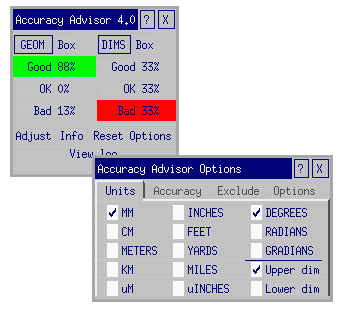 |
Units The first options menu deals with units. Length units are selected automatically by ME10, but can be changed manually if required. Angular units must be selected manually. If dual-dimensions are used (dimensions with different units), it is possible to give priority to either the upper or lower dimension. |
||
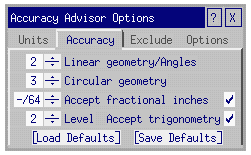 |
Accuracy As accuracy is the property of an element in relation to a desired value, it is entirely up to the user to decide the accuracy to which elements should be compared. Up to 6 decimal places or 1/2" to 1/64" may be selected. The up/down buttons let you easily adjust these values. Note that circle's, arc's and fillet's accuracy can be defined seperately (Circular geometry) |
||
| The
acceptance of fractional values is optional. The acceptance of trigonometry as a qualification for good geometry is also optional. Default settings may be saved or stored. The file "accuracy.def" is stored in ME10's temporary folder. |
Trigonometry is defined as the horizontal and vertical components of a line. It also includes the angle in relation to the horizontal. If trigonometry is accepted, Accuracy Advisor will count the number of trigonometrical features and compare that value with the acceptance level. If an acceptance level of 3 is selected, then the vertical,horizontal and angle need to be "GOOD" for the line to be accepted. | ||
|
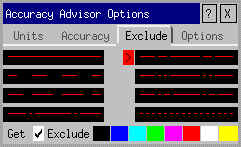
Exclude Centerlines, lines of symmetry etc. do not necessarily have "accurate" lengths. To prevent Accuracy Advisor from counting these lines as "BAD", it is possible to exclude certain linetype/color combinations. The simplest way to select a linetype/color combination is to use "Get" and identify a line with that combination. Otherwise it is possible to select manually with the table. Exclusion may be switched off completely with the "Exclude" option. |
||
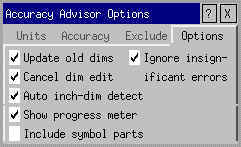 |
Options Other basic options are: Update old dims. Some old ME10 version's dimensioning is not compatible with Accuracy Advisor. This option will automatically update the drawing. |
||
| Auto
inch-dim detect. Even if millimeter units are used, with this option Accuracy
Advisor can recognize inch dimensions. The accuracy will then be judged using inches. Cancel dim edit. If Accuracy Advisor finds a dimension text that has been edited, it will calculate it's accuracy in the normal way. If it is accurate and this option is active, the dimension editing will be cancelled. Ignore insignificant errors. Dimensional errors smaller than 1/10 of the lowest decimal can be considered as "OK". Normally, these dimensions would be considered "BAD". Dimensions with "insignificant" errors are highlighted with a blue color instead of the usual cyan. These dimensions count as "OK" in the statistics for the drawing. Having this option active can help to get a better impression of the severity of inaccuracy of the drawing. |
Show
progress meter. This feature can be switched off. It can save a little time
during large geometric analyses. Include symbol parts. Symbol parts are normally, not part of the mechanical documentation. They are usually titleblocks, BOMs etc. There is therefore no reason to use time analysing these parts. |
||