Adjusting geometry by accuracy
Being able to analyse accuracy is only one feature of the Accuracy Advisor. Once the dimensional analysis is complete then the errors calculated can be used to adjust geometry. This could also be called "accuracy correction".
Dimension types you can use are: DIM_LINE, DIM_COORD, DIM_DATUM, DIM_RADIUS and DIM_DIAMETER.
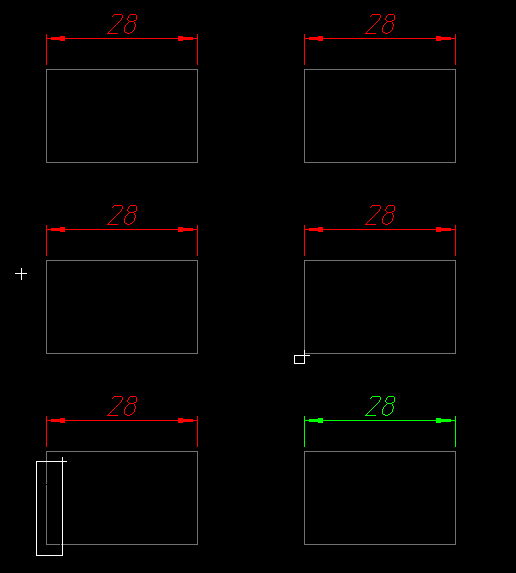
If you find a dimension that is inaccurate simply pick "Adjust" and then identify the dimension. The system will then show one or two arrows indicating the error vector for the type and position of adjustment needed. Linear dimensions have two arrows appear whereas radial dimensions have only one. An example of this is shown below:
|
The inaccurate dimension of 28 is to be corrected. We have picked "Adjust" from the table and identified the dimension itself. The two adjustment arrows have appeared and we must choose which one to use. If the best thing to do is to move the left-hand-side of the square then we pick the arrow on the left. We then select the geometry we want to stretch. Afterwards it is a good idea to check the result by running a dimensional accuracy check (Box). The dimension should then be shown in green (GOOD). |
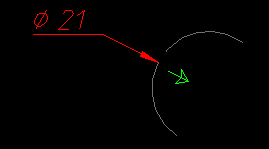
| If a radial dimension is selected then the adjustment arrow will appear like this: | |
Only one adjustment arrow appears since only one possible action exists. When the arrow is picked then the arc is adjusted IMMEDIATELY. Again it is advisable to run a new dimensional accuracy check to make sure the adjustment has been done correctly.
| Prev |