There are two options available for conducting a geometric analysis: "GEOM" (=ALL) and "Box" (=selective).
If "GEOM" is picked then the system will immediately start to estimate the time required for an analysis of all the geometry. If it is found that considerable time will be required, then you will be informed of the estimated time required. At this point you may press ESC. If you chose to continue the progress meter in the table will show how the process is going.
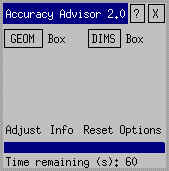
Accuracy Advisor scans all the parts on the screen.
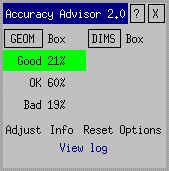
You may highlight a specific accuracy level by picking a field. For example if you pick "Good 21%" then all the "good" elements will be highlighted in their true colours.
Reset the display by selecting "Reset". The various accuracy elements can be re-displayed, if necessary without re-analysing the drawing.